By the end of this tutorial, we will have a custom walk-on created for a specific chatter.
So when they message the first time per stream, they get a text-based message.
Adding A Walk On
Step 1. Open Firebot
This should be a given, but if you don’t have Firebot open, our little robot friend won’t be too impressed.

Step 2. Open Events Section
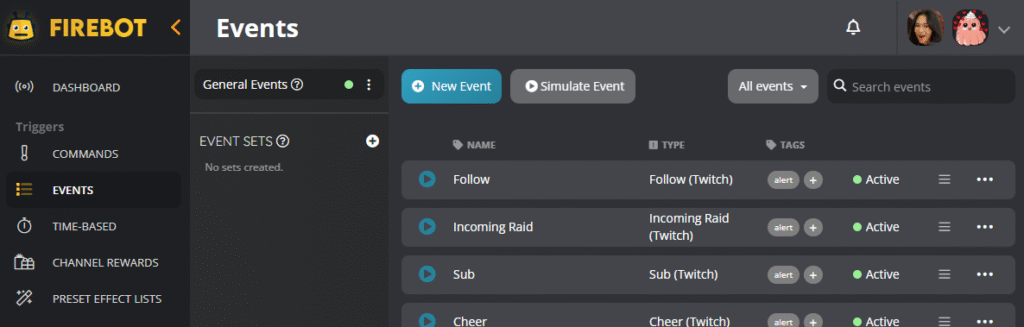
On the left-hand side of the dashboard, under the triggers, click the “Events” item.
What is an event?
An event can be anything from a follow to an incoming raid, sub, or cheer. Essentially, think of an event as something that HAS been triggered, and Firebot can keep an eye out for the events. Firebot will listen for these events, and we can leverage them! YIPEE

Step 3. Click New Event
Click the “+ New Event” button
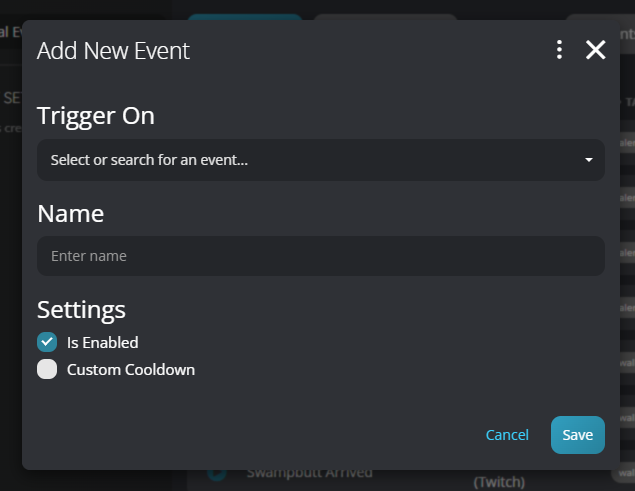
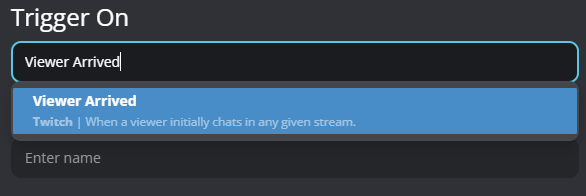
Under the “Triggered On” bar, search “Viewer Arrived”
This triggers when someone chats for the first time on your stream, every stream!
Step 3. Add Filters
You probably don’t want this walk-on to happen for EVERY person who says something on your stream.
So we need to set a filter to ensure this walk-on triggers on a specific chatter.

Click the plus icon to create a new filter.
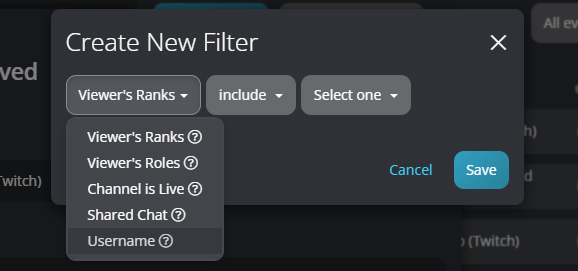
For our tutorial’s sake, we are going to select “Username”, which means the filter will only trigger when a particular chatter messaged for the first time.
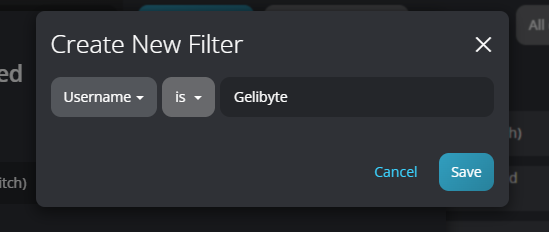
It will look something like the above, and click save. Now the effects you want to trigger only occur when “Gelibyte” chats for the first time per stream.
Step 4. Effects
Effects are all the sounds and things you want to trigger when the chatter has messaged for the first time.
For the sake of this tutorial, I will set it up so that it triggers a chat message.
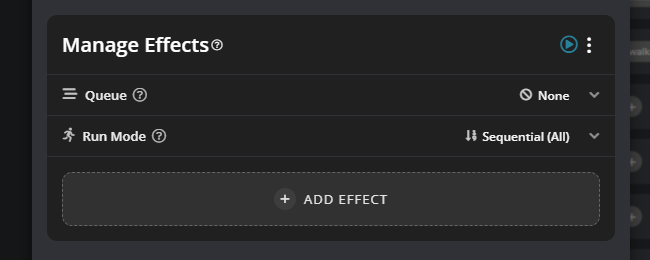
Step 4.1. Text-Based Chat Message
Click “+ ADD EFFECT”
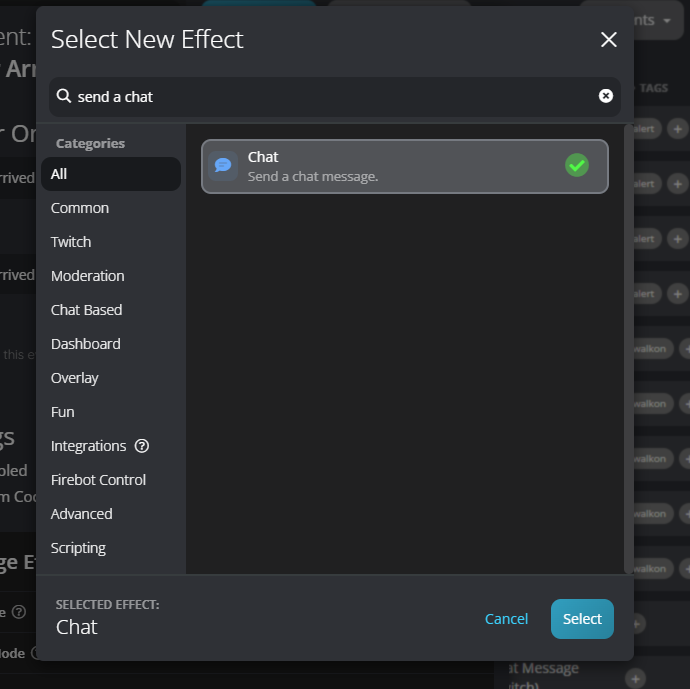
Type “send a chat” in the search bar
Click the option and click select
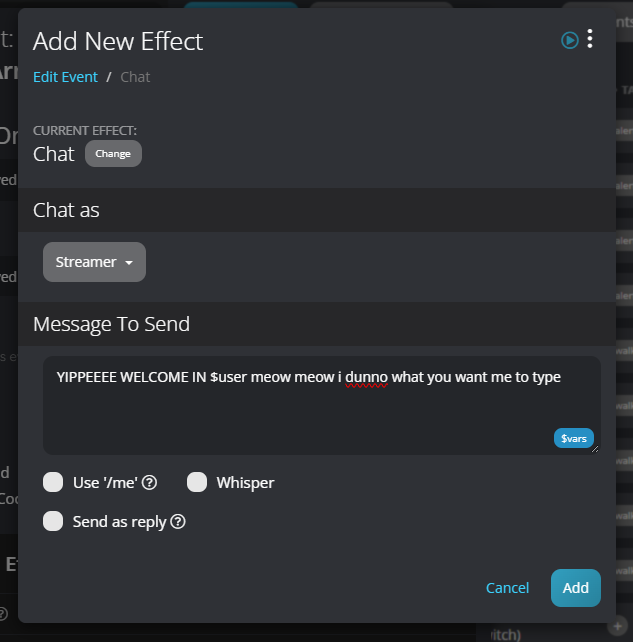
You can then add the message you want to appear in chat!
Use $user to get the specific person’s username.
AHHHH, how do I know it worked? Well, there is a tiny play button on the top right of the “Manage Effects” section, press it!
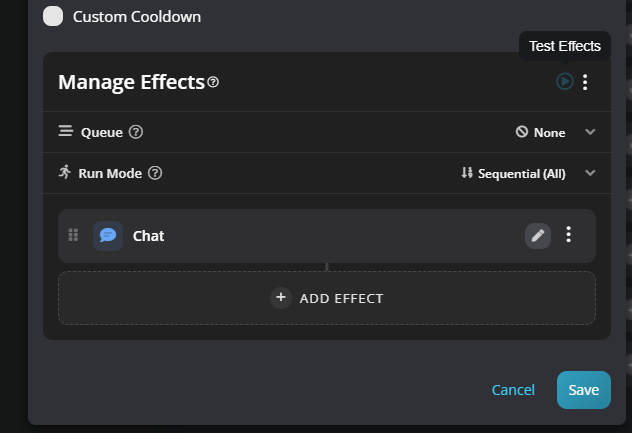
There you have it, the message should show up!
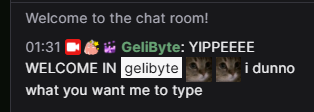
THERE YOU GO, A SUPER SIMPLE TUTORIAL FOR WALK ONS
Yes, you can get fancier with your effects, but I wanted to keep this tutorial as simple as possible!
tl;dr
Add filter to make sure the event only happens for a specific chatter
Add effects you want to trigger when the specific person messages the first time per stream.