AH PANIC!
Are you now affiliate and need some emotes QUICK!
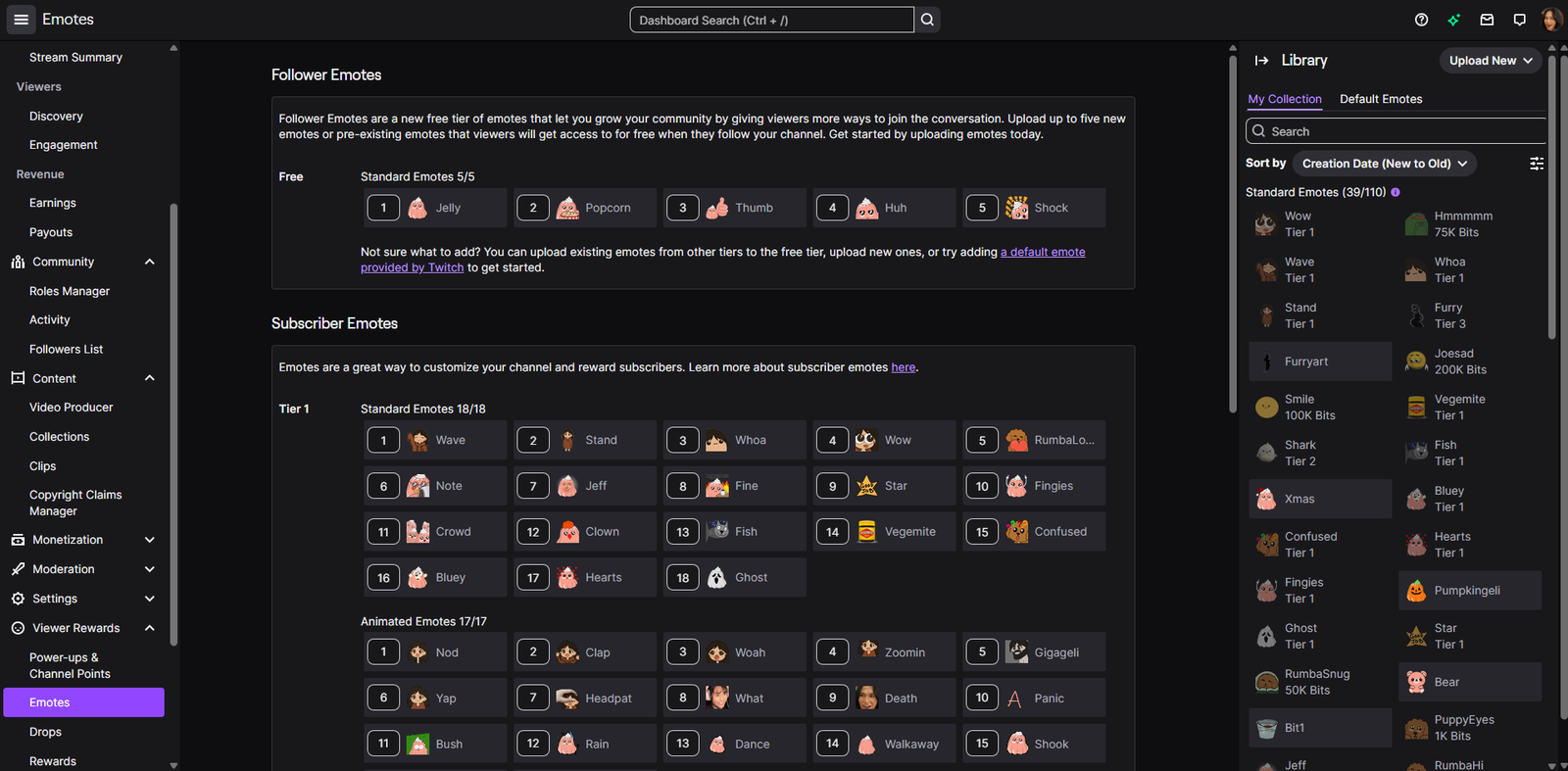

Creating emotes doesn’t have to be expensive or difficult!
When I started streaming I had created all my own emotes on Procreate and Premiere Pro, if you don’t have the tools, time, or you don’t know how to use these tools don’t worry let’s get you up and running quickly.
Creating Animated Emotes
Step 1. Get your base
Get a base for your emotes
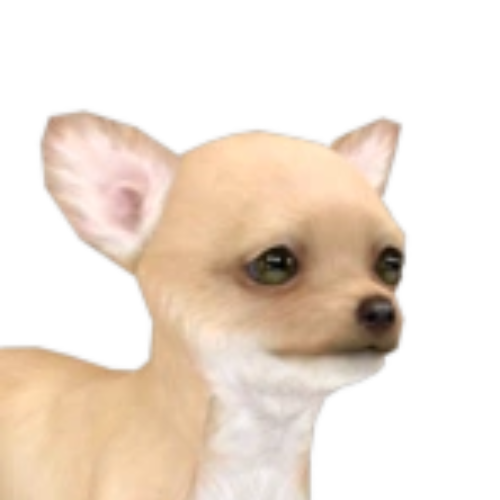
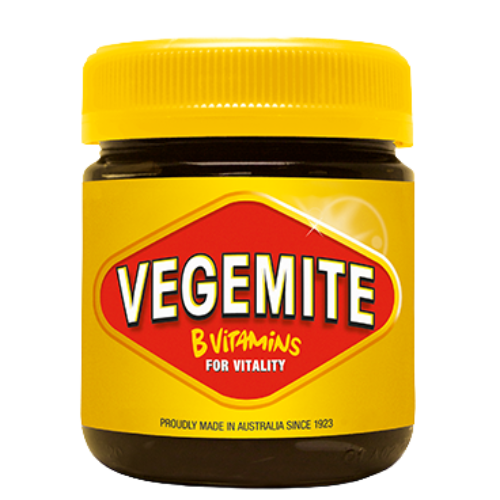
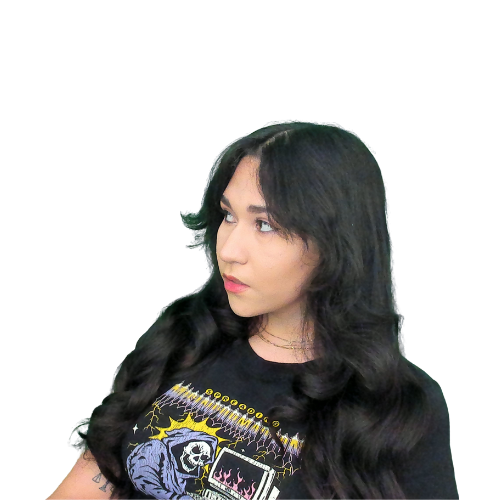
Some ideas for this can be: an avatar, your face, VTuber or PNG-Tuber model, your pet. Go with anything that aligns with your channel and community.


Step 2. Go To MakeEmoji.com
Next, go to makeemoji.com this site is free and has heaps of different options for your animated emote. YIPEE
Geli Lore Drop
This really doesn’t need it’s own step but I used to work for an old timey guy when I was 16 and I wrote guides for him on how to use different websites so . . . I learnt that no step is too obvious or simple 🙂
Step 3. Upload Base Image into MakeEmoji
Let’s grab our base image we chose earlier and upload it to MakeEmoji
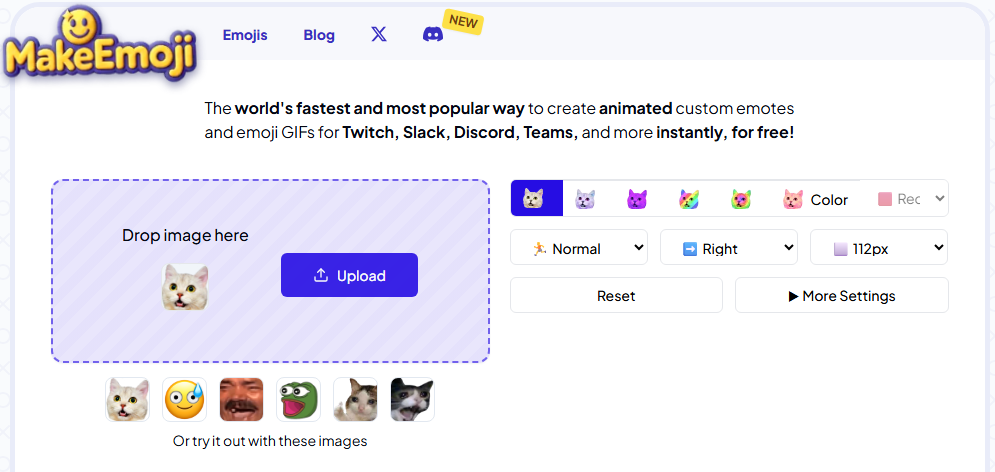
Click the upload button or drop the image you want to upload. You will be able to make adjustments to the image such as: zooming, rotating and removing the background.
I would highly suggest removing the background for a clean look if your base image doesn’t have a transparent background.
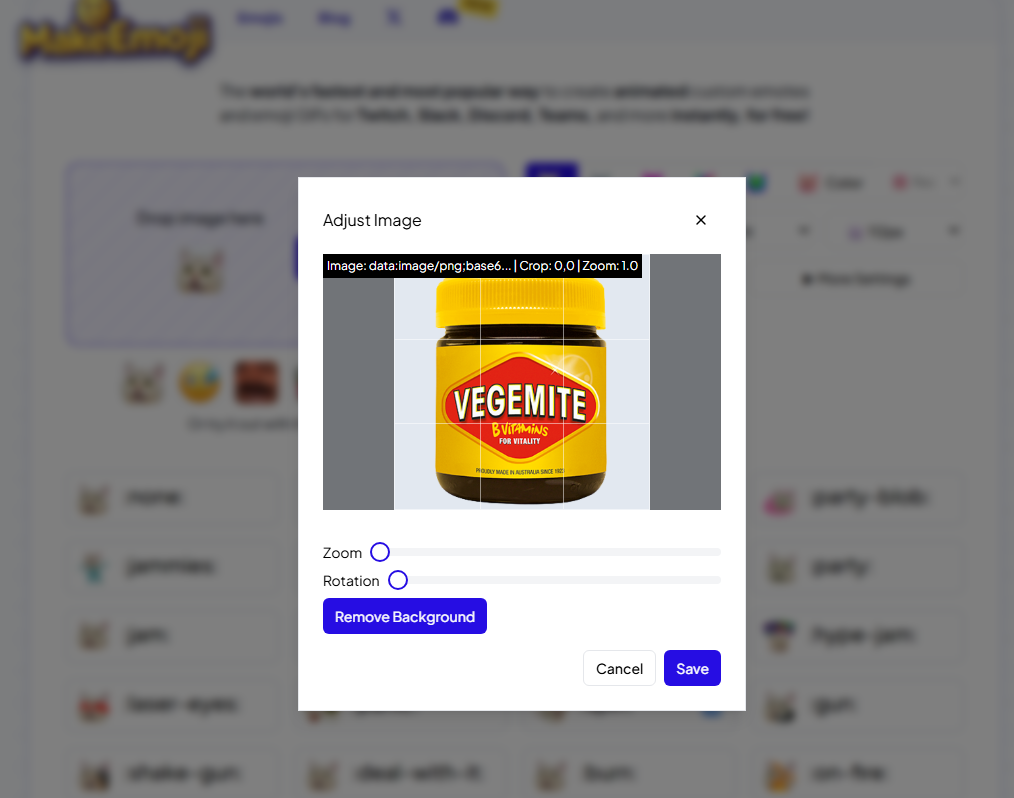
Click save when you’re happy with the image!
Step 4. Select an Animation
As you can see when you upload your emote in there is so much to choose from!
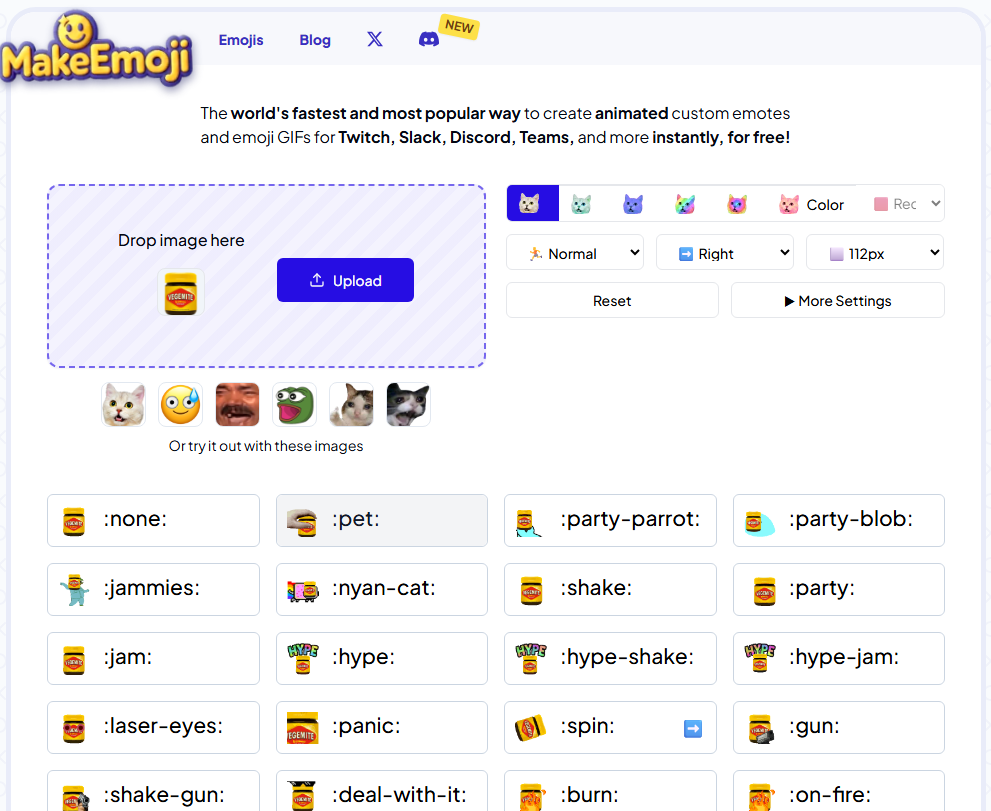
Click onto whichever emote you fancy and it will automatically download the file to your device! SUPER SIMPLE
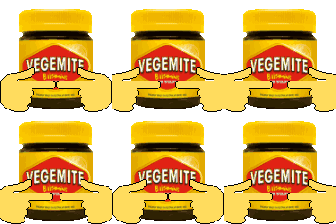
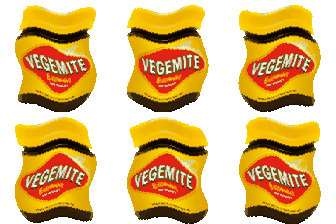
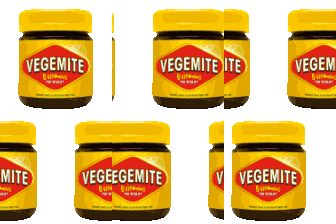
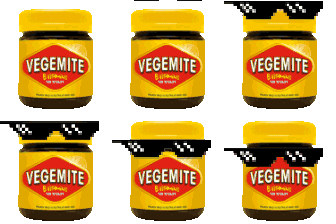
I hope you enjoy your new emotes ~ these are perfect for discord and twitch!


tl;dr
make free animated emotes using
makeemoji.com
I hope this helps!